
System requirements
INFO
Swisscom beem supports all major web browsers and end-user devices. However, not all features and use cases are available or fully supported across every platform, browser, or device. Detailed compatibility information for specific use cases is listed in the relevant sections below.
My Swisscom Business
My Swisscom Business is the online self-service portal designed for business customers to manage their Swisscom Business Account. It provides:
- 24/7 access to service and account information
- Tools for user and permission management
- Options to view and modify products, subscriptions, and invoices
- Real-time notifications about service updates or maintenance
- Access to support resources, including FAQs and documentation
This portal acts as the central interface for administrators and authorised users to configure and monitor their Swisscom services, including beem.
INFO
When accessing My Swisscom Business, make sure to use a Swisscom Business Account (e.g., prename.surname@company.beem.swiss). Any other Swisscom account that you may have used in the past or are using for other Swisscom services will not grant you the permission to manage anything beem related.
Swisscom Business Account
The Swisscom Business Account is the new standard access solution for business customers and will gradually replace the previous Swisscom Login and Business Login. It provides stronger security through modern authentication methods such as passkeys and gives access to advanced security and communication capabilities, including enhanced beem features.
For help with registration, sign-in, and administration, see the Swisscom Business Account FAQ.
INFO
The Swisscom Business Account is available for customers with beem Security Edition Standard, Plus, or Premium. Customers with beem Essential Edition can continue using their existing Swisscom Login.
beem app – supported client operating systems
The beem app is a native VPN client built for seamless compatibility with Android, iOS, macOS, and Windows operating systems.
To ensure reliable performance across devices, the app supports the following operating system versions:
| Client Operating System | Version |
|---|---|
| Windows 11 | All versions ¹ |
| macOS | macOS 15 and later |
| iOS/iPadOS | iOS/iPad OS 15.5 and later |
| Android | Android 13 and later² |
Android-specific notes
The Android version of the beem app is designed independently of specific hardware vendors. Since manufacturers tailor Android to their own specifications, certain device- or model-specific behaviours may arise. The beem app is tested and validated on Samsung smartphones and tablets with One UI, where it delivers a reliable and secure experience. Swisscom cannot offer guarantees for other specific hardware models.
Supported browsers per operating system
The following table provides an overview of the operating systems and browsers supported by beem:
| Client Operating System | Browser | Version |
|---|---|---|
| Windows 11 | Chrome | 136.0.7103.92 |
| Windows 11 | Edge | 135.0.3179.98 |
| macOS 15+ | Chrome | 136.0.7103.93 |
| macOS 15+ | Edge | 135.0.3179.54 |
| macOS 15+ | Safari | 18.4 |
| iOS/iPadOS 15.5+ | Chrome | 131.0.6778.73 |
| iOS/iPadOS 15.5+ | Edge | 135.3179.98 |
| iOS/iPadOS 15.5+ | Safari | 18.4 |
| Android 13+ | Chrome | 136.0.7103.87 |
| Android 13+ | Edge | 135.0.3179.85 |
WARNING
Although older versions may still function, they are not officially supported. We strongly recommend keeping your browser up to date to ensure optimal performance and security.
Passkeys
Passkeys offer a modern alternative to conventional passwords. By using biometrics, asymmetric encryption and strong cryptographic techniques, they provide exceptional security while delivering an intuitive and streamlined user experience. Passkeys work according to the principle of asymmetric encryption. When registering for beem passkey access, two mathematically linked keys are generated:
- A private key, which is securely stored on your device.
- A service key, which is registered with beem.
When you want to sign in with your passkey, beem sends a challenge to your device. Your device signs it with the private key (after confirmation via Face ID, Touch ID, Windows Hello, or PIN) and beem verifies the signature using the service key. Neither the private key nor any biometric data leave your device during authentication–these are locked on your device's Trusted Platform Module.
The principle of asymmetric encryption eliminates the common risks associated with passwords since there are none to transmit. This prevents credential theft through phishing, replay attacks, database breaches and other threats. By combining passkeys with device-based authentication, beem establishes a multi-layered security model.
Passkey authentication methods
There are different ways in which passkeys can be used to sign in, depending on your setup, infrastructure and organisational policy:
This method involves two locally stored passkeys; one is stored on the mobile device you have used to set up your initial passkey with and the second is stored on the other device (e.g., a laptop) that you are using to login with. When logging in, the private key is used locally to sign the authentication challenge after you confirm your identity (e.g., Face ID, Touch ID, PIN).
Instead of using your mobile device (e.g., a smartphone) for authentication, a hardware security key (e.g., a YubiKey) that holds the passkey is used instead. It performs the same cryptographic signing process internally when you approve the login, ensuring that the private key remains secure and portable across devices.
If your passkey is stored on your mobile device, you can authenticate on another device that does not have a local beem passkey stored (e.g., a laptop) via Bluetooth. The authentication is initiated by scanning the QR-code on the with your mobile device. Your phone verifies your identity locally and then communicates with the computer to complete the login process. The private key stays on the phone and never transmits over Bluetooth.
This authentication requires a Bluetooth connection. After successfully authenticating this way, you are usually given the option to create a new local passkey for future authentications.
If the device you want to set up a new local passkey for does not support Bluetooth, the process can be completed with the use of recovery codes. To do so:
- Open the regular passkey login page.
- Click on Use passkey and then cancel the login.
- This prompts the link Having trouble signing in?, click on it.
- Click on Account recovery and follow through with the recovery code process.
Passkeys are stored in a cloud-based credential manager (e.g., Apple iCloud Keychain, Google Password Manager and Microsoft Password Manager) allowing them to automatically sync across all devices within that same ecosystem. This allows signing in from multiple devices that share the same account, while keeping the private key encrypted and tied to its own identity verification.
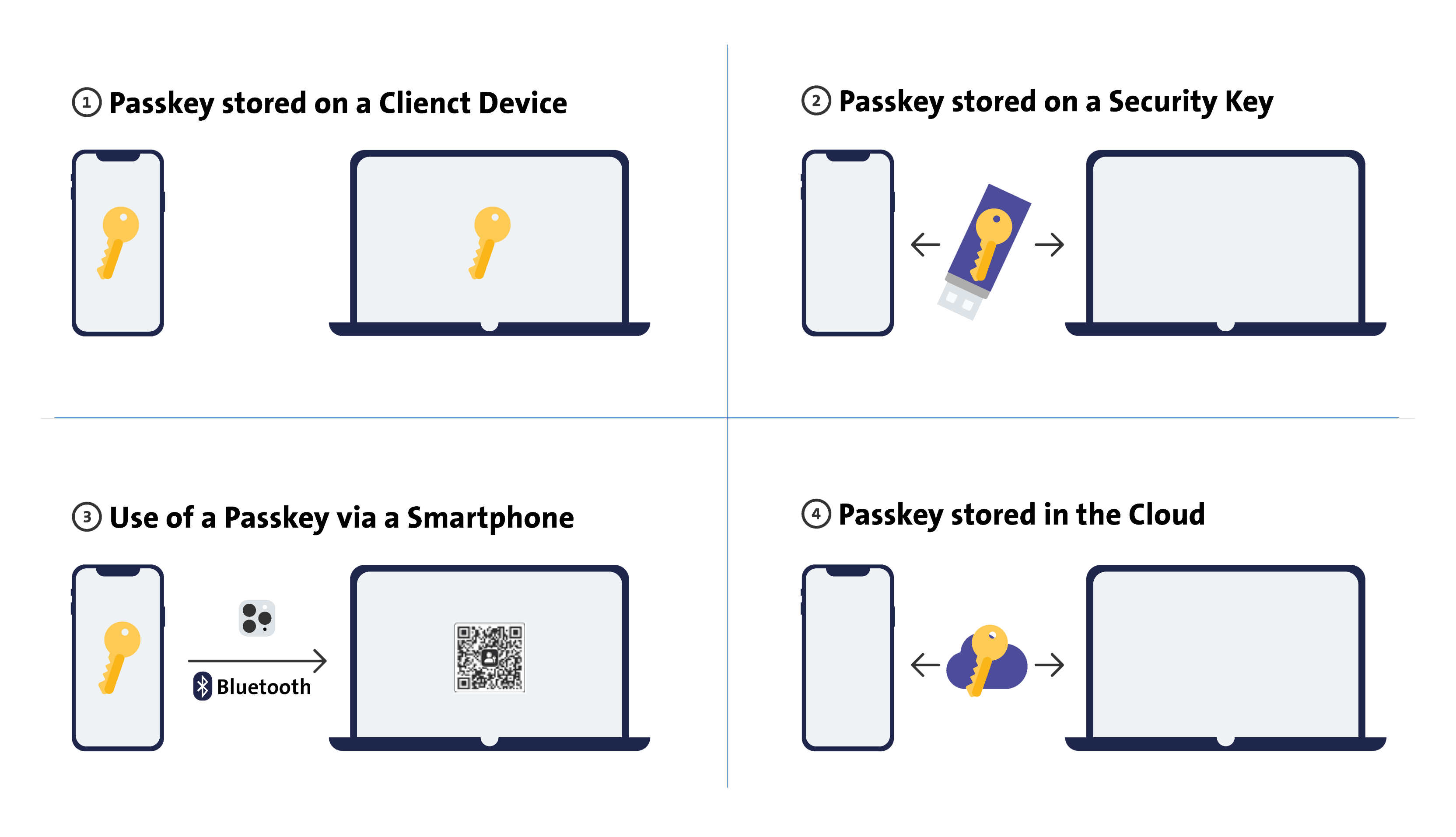 The above mentioned methods for storing and using passkeys.
Passkey registration
Passkeys are issued by your company's beemNet administrator and are linked to user's respective Swisscom Business Accounts. When an administrator creates a Swisscom Business Account for a user, this user will receive a confirmation e-mail containing a username and a setup link, which starts the passkey creation assistant.
After the initial setup, additional passkeys can be created on other devices. It is recommended to register at least two passkeys to prevent a lockout.
- Click on the link in the e-mail you have received from your administrator to start the passkey creation assistant.
- Enter your username and click Continue.
- You will receive a temporary Swisscom Business Account password you via SMS. Copy and paste it into the password field and click Next.
- Follow the prompts and click Create passkey.
- Click Passwords Available on your Apple devices and then Continue.
- (Recommended) Download the recovery codes and click Next.
- Enter a recovery e-mail address and click Next.
- Open the inbox of the recovery e-mail address, copy the confirmation code, return to the sign-in page, paste the code, and click Next.
- (Optional) Add your mobile phone number and click Next.
- Follow through with the remaining prompts to finish the passkey setup.
- Click on the link in the e-mail you have received from your administrator to start the passkey creation assistant.
- Enter your username and click Continue.
- You will receive a temporary Swisscom Business Account password you via SMS. Copy and paste it into the password field and click Next.
- Follow the prompts and click Create passkey.
- (Recommended) Download the recovery codes and click Next.
- Choose where your passkey should be created (e.g., Samsung Pass) and click Next.
- You will be logged in.
- Follow through with the remaining prompts to finish the passkey setup.
WARNING
When saving a passkey to a cloud service, make sure the same service is configured as your device's default password manager – you can configure this in your device's settings. Otherwise, the passkey may not be available for autofill or sign-in.
For example, on a Samsung device (One UI), a passkey created in Google Chrome is usually saved to Google Password Manager. However, the device may use Samsung Pass as the default credential provider, which can prevent the passkey from being offered automatically.
Passkey recovery
After every successful passkey setup, a set of device specific recovery codes is generated and can be downloaded as a PDF. User should hold on to these codes, as they might need them to recover access to their account.
Alternatively, administrators can revoke and issue new passkeys for users in the My Swisscom Business portal:
- Open the company tab in the top right corner (company name) and click on Company Profile.
- Click on Users and select the respective user.
- In the user overview, click on Login & Security and Remove passkeys and resend activation.
Passkey compatibility chart
This table shows the passkey compatibility between client operating systems and web browsers:
| Browser | iOS/iPadOS 16+ (2022) | macOS 15+ (2024) | Android 13+ | Windows 11¹ |
|---|---|---|---|---|
| Chrome | Yes | Yes | Yes | Yes |
| Safari | Yes | Yes | No | No |
| Edge | Yes | Yes | Yes | Yes |
¹ Authentication and passkey management features were added in Windows 11 23H2.
beemNet access
beemNet supports all major operating systems and enables secure access to the Swisscom network from both internal and external environments.
Access Requirements:
To use beemNet, customers must have:
- A valid beem user licence, and
- The appropriate Swisscom network access service, depending on their connectivity setup.
Supported Swisscom Access Types:
- Enterprise Connect
- IP-Plus
- Smart Business Connect
- Wireline Access
When connecting from outside the Swisscom network (e.g., home office, public Wi-Fi), users must use the beem app to establish a secure connection to the beemNet environment.
| User Licence Type | Max. Number of Devices | Mobile Voice and Data | No Restriction | Concurrent vs. Named |
|---|---|---|---|---|
| Protect & Connect | 6 | Yes | Yes | 👤 |
| Protect | 3 | No | Yes | 👤 |
| Collaborate | 1 (5) | No | No | 👥👥 |
Wireline
To convert a standard internet connection into a beemNet connection, one of the following Swisscom access products is required:
- inOne KMU office or beem Office
- Smart Business Connect
- Enterprise Connect
- IP-Plus®
If none of these access types are available, users can still connect to beemNet via the beem app, which enables secure access over third-party internet connections.
Once connected, the local area network (LAN) behind the internet connection is automatically integrated into the beemNet environment, allowing all devices within the LAN to securely communicate over the Swisscom network.
WARNING
beemNet currently does not support IPv6. Enabling IPv6 may cause connectivity issues and impact service stability.
Recommended actions to ensure optimal performance:
- If you want to protect your Wireline Location with beem, do not enable IPv6.
- If IPv6 is already enabled and required in your setup, please disable the ‘Protect’ option to minimise the risk of disruptions.
We are actively working to resolve this limitation. Until official IPv6 support is available, please follow this guidance to ensure stable service.
User licence and client devices
| Service | Description |
|---|---|
| Protect | Standard protection layer for secure access. |
| Collaborate | (Coming soon) |
| NATEL® go with beemNet option | Mobile subscription with optional beemNet integration for secure mobile access. |
Access via internet browser
Access to beem-protected resources via a standard internet browser does not necessarily require a user licence. If beem is used to secure services such as web servers or E-Connect servers, it is possible to allow access for unauthenticated or anonymous internet users. In such cases, users can interact with the protected service through the beem network without needing to be explicitly licensed.
Access for IoT devices
Customers with a contract for IoT devices with Swisscom can integrate them into the beem network.
Fail-Close
‘Always On’ with ‘Fail-close’ is supported on Windows, macOS, and Android. iOS and iPadOS do not support ‘fail-close’ unless device management is implemented by adopting supervised mode.
Single Sign-On
This section provides an overview of public and private Single Sign-On (SSO) support within the beem ecosystem. Currently, four SSO integration variants are available or planned:
| SSO Variant | Description |
|---|---|
| Swisscom Services | Includes My Swisscom Business, beem, and other internal Swisscom services |
| Swisscom Workspace Services | Internal Workspace, Enterprise Workspace and IT KMU Solution (Coming soon) |
| Customer’s Private Applications | SSO integration for customer-hosted apps (Coming soon) |
| Customer’s SaaS Applications | Supports third-party platforms such as salesforce and workday |
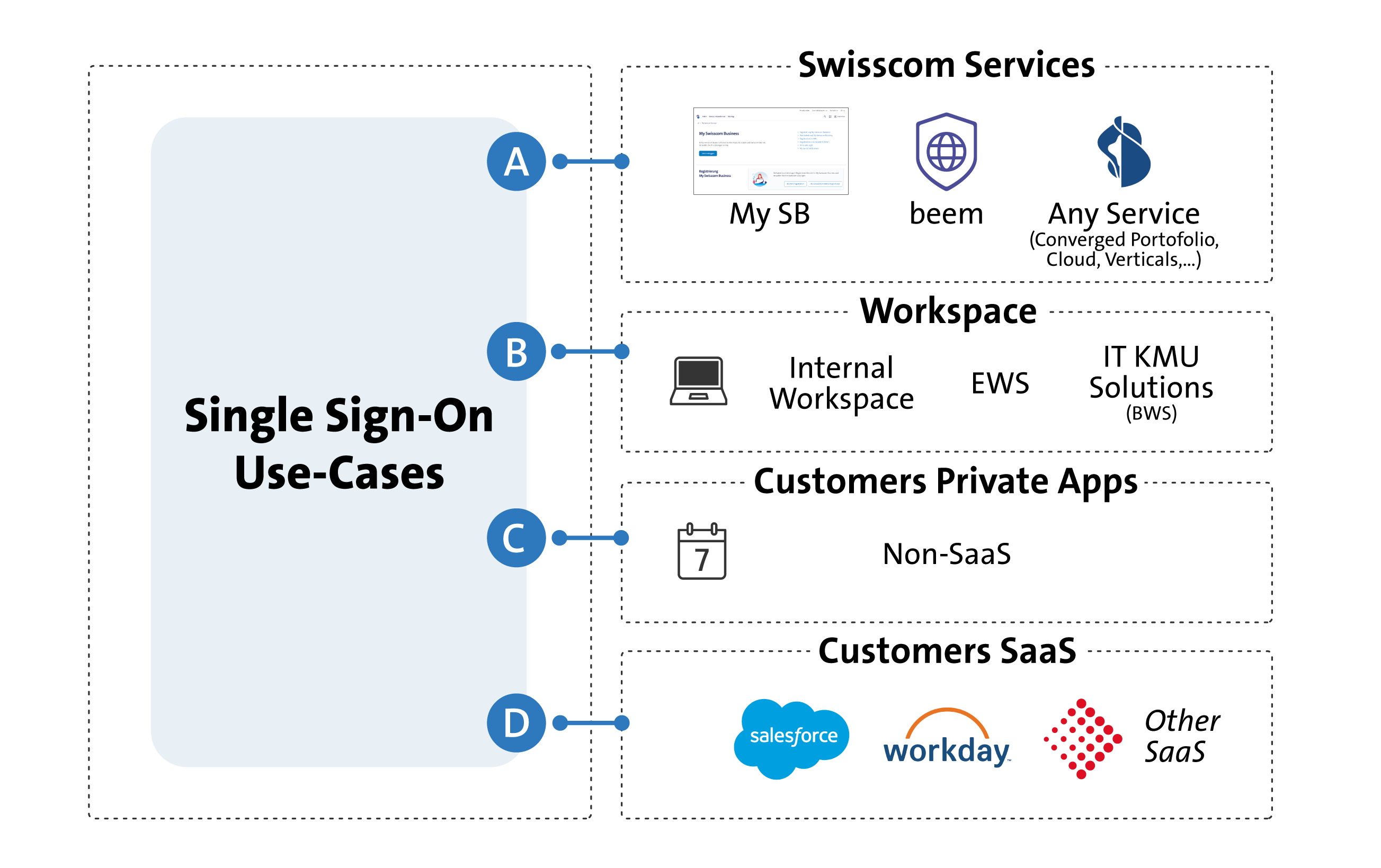 Figure: The image illustrates the SSO integration landscape across these variants.
Federation
beem supports identity federation for seamless integration with enterprise identity providers. Currently, the following federation standards are supported:
- Microsoft Entra ID (formerly Azure Active Directory)
- Active Directory Federation Services (ADFS)
This allows organisations to leverage their existing identity infrastructure for secure and centralised authentication across beem-enabled services.
INFO
For detailed configuration guidance or support for additional identity providers, please contact us directly.
Device management system requirements
This section outlines the prerequisites and supported configurations for managing devices with beem.
WARNING
Not all versions of client operating systems are supported.
Supported operating systems for device management
| Platform | Supported Versions | Requirements |
|---|---|---|
| iOS / iPadOS | iOS 16.x – iOS 18.3.1 | Apple Business Manager account required for enrolment and management |
| macOS | macOS 15 and above | Apple Business Manager account required for enrolment and management |
| Android | Android 15 and above | Requires enrolment via Google Enterprise account for policy enforcement |
| Windows | Windows 11 Pro Windows 11 Enterprise (21H2, 22H2, 23H2, 24H2) | No account required for device management |
WARNING
To ensure security and compatibility, only selected Android hardware is supported. Generic or uncertified devices are not considered secure.
Non-compatible configurations
The following configurations are not supported with beem:
- Consumer and corporate VPN solutions
- Cascading firewalls
- Third-party solutions that interfere with secure device posture or network routing (category-based exclusions)
- IPv6 connectivity*
- iCloud Private Relay
- QUIC
WARNING
*IPv6 connectivity must be disabled before activating beem net. If IPv6 cannot be disabled via device or service configuration, Swisscom Support must be contacted.
iCloud Private Relay
iCloud Private Relay (also known as Apple Private Relay) is a privacy feature included in iCloud+. Private Relay works mainly with the Safari browser and selected apps on iPhone, iPad, and Mac. Unlike a VPN or a security solution that is directly integrated into the network (such as beem), Private Relay does not cover all device traffic.
How it works: When Private Relay is enabled, your requests are routed through two secure internet relays.
- The first relay (operated by Apple) sees your IP address but not the destination website. DNS queries are encrypted
- The second relay (operated by a third party) assigns a temporary IP address, decrypts the domain name, and connects you to the site.
This process protects user identity without significantly impacting browsing speed.
Drawbacks of Private Relay with beem
beem is a security solution for corporate networks. It provides advanced features such as Application Control, Intrusion Prevention, Deep Packet Inspection, and Geo-IP blocking to detect threats and control traffic.
Private Relay interferes with these functions in several ways:
- Bypassing firewall rules: Since traffic is routed through Apple relays, beem cannot fully inspect it. The firewall often classifies the traffic as Proxy Avoidance and blocks it, leading to issues with websites or apps (e.g., Apple News).
- DNS and traffic classification issues: Private Relay traffic is frequently flagged as a potential proxy or threat, which can result in dropped DNS queries or blocked connections.
- Performance impact: The extra relays and encryption add latency. Combined with beem, this can cause noticeably slower browsing.
- Security blind spots: In corporate environments, visibility is critical. Private Relay obscures traffic, complicating logging and auditing. This creates blind spots where malware or unauthorised access may go undetected.
Why beem and iCloud Private Relay are not compatible
In corporate environments, however, this conflicts with the visibility and control required by beem. To ensure full functionality and compliance with enterprise policies, beem actively blocks requests to Apple’s domains used by iCloud Private Relay. As a result, your Apple device may display a message indicating that iCloud Private Relay is unavailable. This behaviour is intentional and technically necessary for beem to deliver its full range of capabilities. You can safely ignore this notification.
Best practices for Apple devices in beem-protected networks
To ensure smooth operation and full compatibility with beem, please follow these best practices when using Apple devices:
- Private Relay is not available within beemNet: Connections to iCloud Private Relay cannot be established inside beem-protected networks.
- Disable Private Relay in device settings: Users with active Private Relay must manually disable it to avoid connectivity issues.
- Disable per connection: Private Relay can be turned off either globally or per connection (e.g., per SIM or Wi-Fi SSID). We recommend disabling it per connection to maintain flexibility.
- Avoid connection problems: If Private Relay remains active, it may cause temporary deactivation or blocked access to certain apps and services.
- Guest Wi-Fi limitations: Private Relay is also unavailable in guest Wi-Fi networks protected by beem. Apple devices may display a message indicating that Private Relay is not available for the current connection and must be disabled.
How to disable iCloud Private Relay for a specific SIM connection
To ensure compatibility with beem, you can disable Private Relay for individual mobile connections (e.g., SIM cards) by following these steps:
- Open Settings on your device.
- Tap on Mobile Service.
- Select the SIM card or mobile plan you want to configure.
- Deactivate the option Limit IP Address Tracking.
This disables iCloud Private Relay for that specific connection, helping avoid compatibility issues with beem while maintaining flexibility for other networks.
QUIC
QUIC is a transport protocol that combines the functionality of TCP, TLS, and HTTP/2. It is encrypted, connection-oriented, operates on top of UDP and serves as the foundation for HTTP/3. While QUIC brings improvements in speed and privacy, it poses a challenge for existing security solutions. Many security features rely on reading connection details that are visible with TCP. QUIC encrypts this information, including the connection metadata, making it inaccessible to security systems. As a result, deep packet inspection (DPI), malware scanning, and data loss prevention (DLP) rules cannot be applied to QUIC traffic. This is an industry-wide challenge, and blocking QUIC traffic is the recommended approach.
beem follows this best practice. QUIC traffic is blocked in the beemNet and connections automatically fall back to TCP-based protocols, which beem can fully inspect and protect. This ensures that all security features (including malware scanning and DLP) remain fully effective. Since QUIC is enabled by default in most browsers, a QUIC connection may still be attempted before falling back to TCP, which can cause slight delays or affect the functionality of certain online services. To avoid this, it is recommended to deactivate QUIC directly in your web browser. This ensures that connections are established via TCP from the start, providing both full security and the best possible user experience.
Use the guides below to deactivate the QUIC protocol in your web browser:
INFO
Currently, you cannot disable QUIC in Safari (macOS, iPhone, iPad).
Supported IaaS solutions
Applicable only for API Data Protection CASB
The following Infrastructure as a Service (IaaS) platforms are supported:
- Microsoft Azure
- Google Cloud Platform (GCP)
- Amazon Web Services (AWS)
- Oracle Cloud Infrastructure (OCI)
Supported SaaS Solutions
beem supports a wide range of SaaS (Software as a Service) applications through multiple integration methods to ensure visibility, control, and data protection. The platform can detect and manage over 8000 SaaS applications via Shadow IT discovery.
Single Sign-On (SSO) support is also planned and will be available soon.
The table below lists currently supported SaaS applications and indicates their compatibility with the following enforcement methods: inline CASB via forward proxy, inline CASB via reverse proxy, and API-based data protection CASB.
| Inline CASB via Forward Proxy | Inline CASB via Reversed Proxy | API-based Data Protection CASB | |
|---|---|---|---|
| 4shared | Yes | No | No |
| Amazon AWS | Yes | No | No |
| AOL | Yes | No | No |
| Bitbucket | Yes | No | No |
| Blogger | Yes | No | No |
| Box | Yes | Yes | Yes |
| Cisco Webex Teams | No | No | Yes |
| Citrix ShareFile | No | No | Yes |
| Confluence | No | No | Yes |
| Craigslist | Yes | No | No |
| Dailymotion | Yes | No | No |
| Daum Mail | Yes | No | No |
| DocuSign | Yes | No | No |
| Dropbox | Yes | Yes | Yes |
| eBay | Yes | No | No |
| Egnyte | No | No | Yes |
| Evernote | Yes | No | No |
| Excel Online | Yes | No | No |
| Yes | No | No | |
| Facebook Messenger | Yes | No | No |
| Facebook Workplace | Yes | No | No |
| Flickr | Yes | No | No |
| GitHub | Yes | No | Yes |
| GitLab | No | No | Yes |
| No | Yes | No | |
| Google Accounts | Yes | No | No |
| Google Docs | Yes | No | No |
| Google Drive | No | No | Yes |
| Google Gmail | Yes | No | Yes |
| Google Photos | Yes | No | No |
| Google Talk | Yes | No | No |
| imo | Yes | No | No |
| Yes | No | No | |
| Jira | Yes | No | Yes |
| Join.Me | Yes | No | No |
| LastPass | Yes | No | No |
| Line | Yes | No | No |
| Yes | No | No | |
| Mail.ru | Yes | No | No |
| Microsoft OneDrive | No | No | Yes |
| Microsoft OneNote | Yes | No | No |
| Microsoft Outlook | Yes | No | Yes |
| Microsoft SharePoint | No | No | Yes |
| Microsoft Teams | Yes | No | Yes |
| Microsoft Yammer | No | No | Yes |
| Naver Mail | Yes | No | No |
| Netflix | Yes | No | No |
| Notion | No | No | Yes |
| Office 365 | Yes | Yes | No |
| Okta | Yes | No | No |
| OneDrive | Yes | No | No |
| OneLogin | Yes | No | No |
| PayPal | Yes | No | No |
| Yes | No | No | |
| PowerPoint Online | Yes | No | No |
| ProtonMail | Yes | No | No |
| Yes | No | No | |
| Salesforce | Yes | Yes | Yes |
| ServiceNow | No | No | Yes |
| ShareFile.com | Yes | No | No |
| SharePoint Online | Yes | No | No |
| Shopify | Yes | No | No |
| Skype | Yes | No | No |
| Slack | Yes | No | Yes |
| SlideShare | Yes | No | No |
| SoundCloud | Yes | No | No |
| SourceForge | Yes | No | No |
| Spotify | Yes | No | No |
| Stack Overflow | Yes | No | No |
| Tango | Yes | No | No |
| Telegram | Yes | No | No |
| Trello | Yes | No | Yes |
| Twitch | Yes | No | No |
| Yes | No | No | |
| Viber | Yes | No | No |
| Vimeo | Yes | No | No |
| VMware | Yes | No | No |
| Webex | Yes | No | No |
| Yes | No | No | |
| WeTransfer | Yes | No | No |
| Yes | No | No | |
| Word Online | Yes | No | No |
| WordPress | Yes | No | No |
| Workplace from Meta | No | No | Yes |
| Xero | Yes | No | No |
| Yammer | Yes | No | No |
| Yandex | Yes | No | No |
| Yandex Mail | Yes | No | No |
| YouTube | Yes | No | No |
| Zalo | Yes | No | No |
| Zendesk | No | No | Yes |
| Zoom | Yes | No | Yes |